
New to moving around in 3D? Give this a minute and it will click. Here are the essentials for getting around the 3D view so designing in Pvneo feels natural.
The three mouse moves
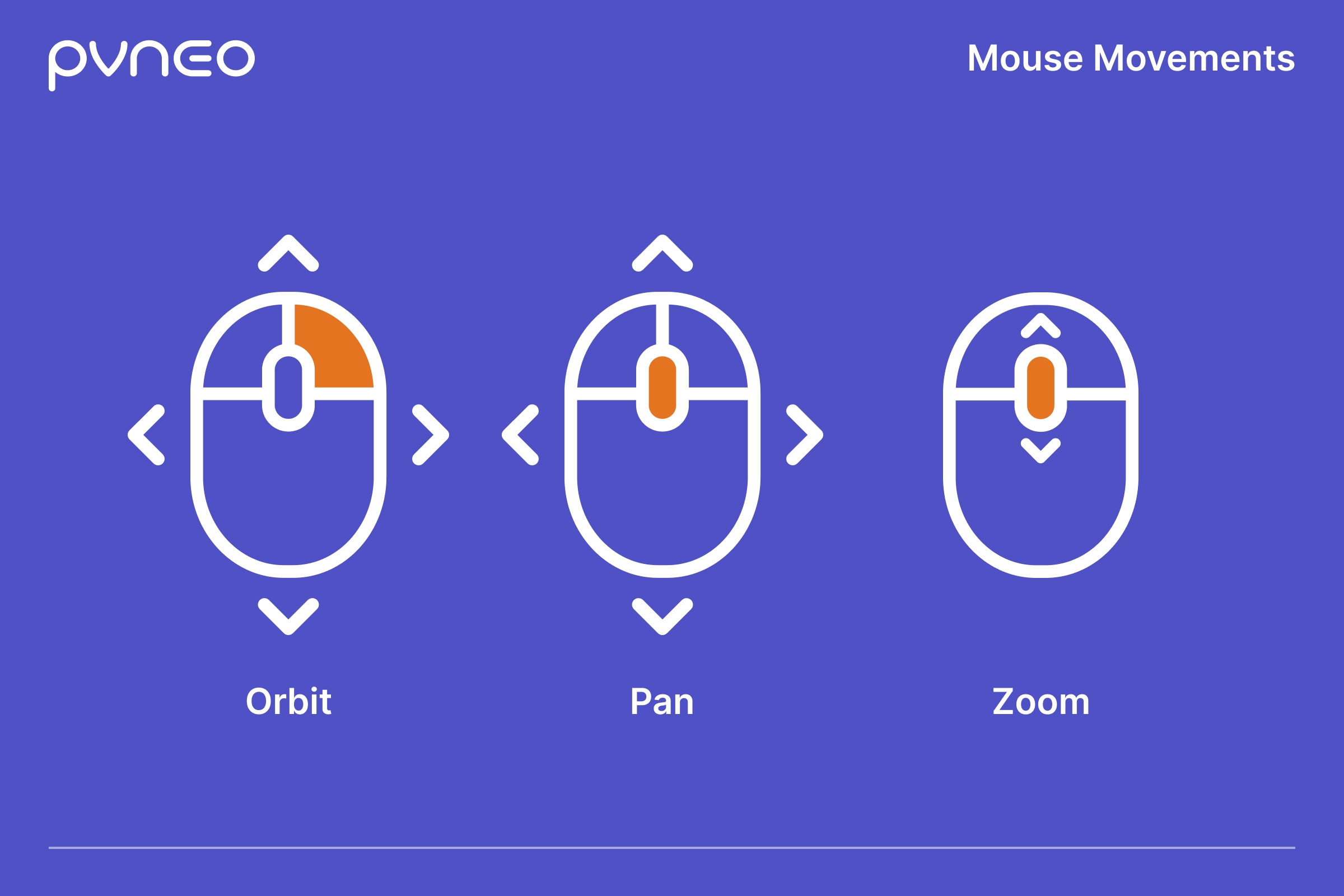
There are really just three moves, all on the mouse:
- Orbit – hold the right mouse button and drag to swing the view around your model.
- Pan – hold the middle mouse button and drag to slide across the view. If the middle button is not comfortable, or you are on a trackpad, hold the spacebar and drag with a left click instead.
- Zoom – scroll to zoom in and out.
Those three cover almost everything.
If you get stuck looking straight down
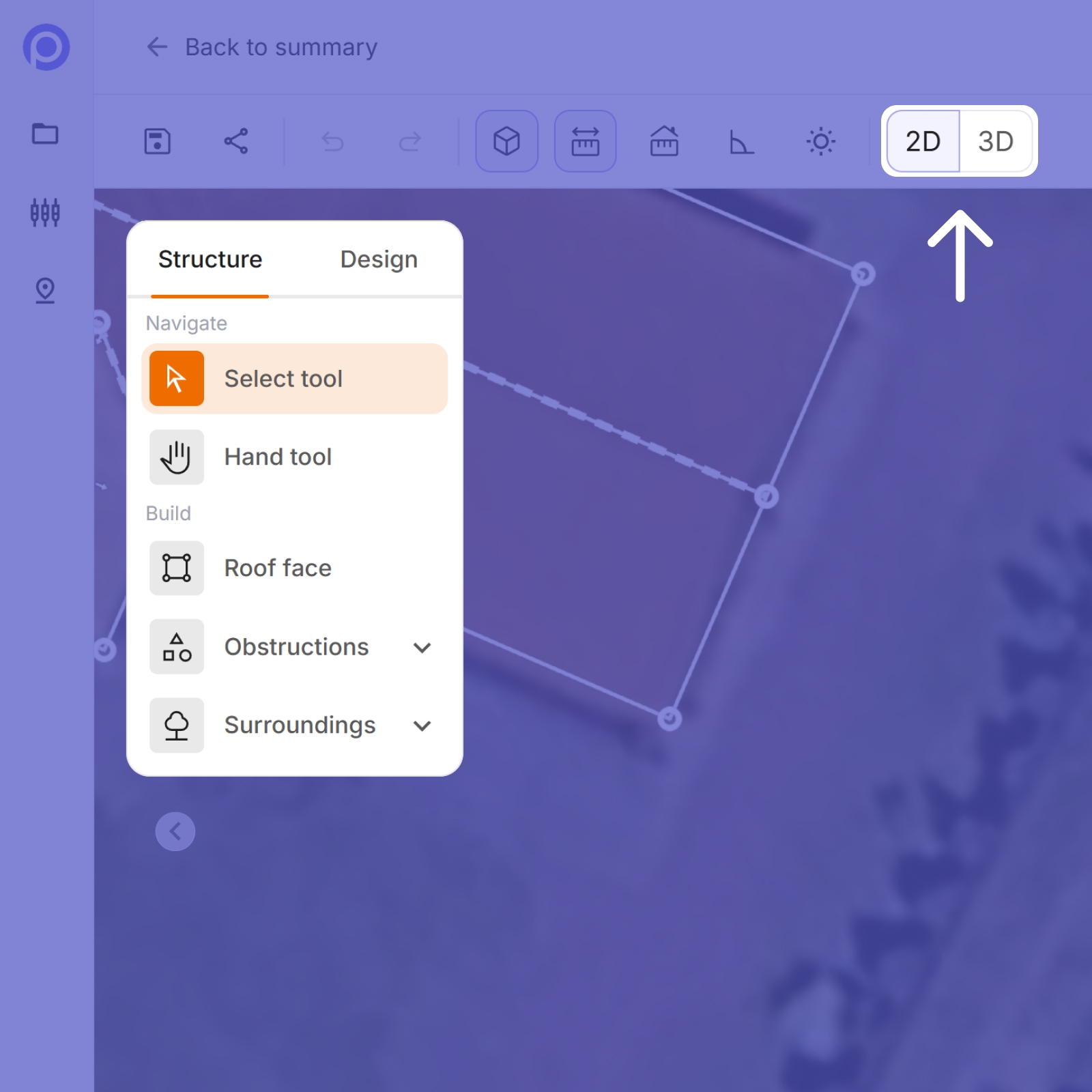
If you ever feel stuck in a flat, top-down view and can’t tilt the camera, you are probably in Structure mode’s 2D view. That usually happens after picking a roof face tool, which drops you into 2D to draw flat. Just switch back to 3D and you are free to orbit again.
Use the cube if you prefer
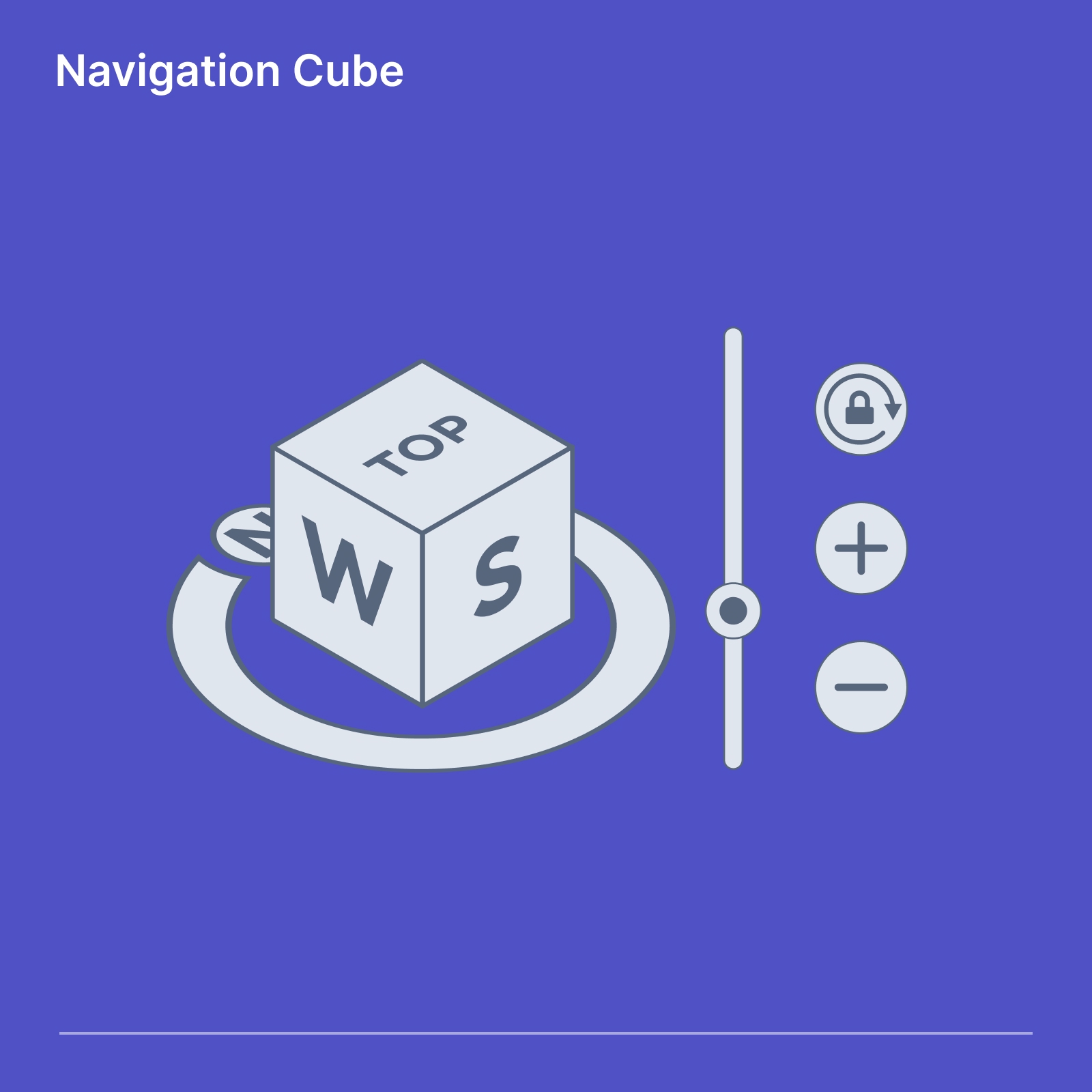
We would recommend getting comfortable with the mouse moves first, but the cube in the corner is there as another option. Use the ring to rotate, the slider to tilt the angle, and the plus and minus buttons to zoom. You can even click a side of the cube, like Top, to snap straight to that view.
Good to know
- Pvneo works best on a desktop with a mouse right now, though a trackpad works too.
- Give it a few minutes and moving around in 3D will start to feel natural.